

This feature is in beta. Controls, decisions, the controls CLI commands (
kosli create control, kosli attest decision, and related), and the for_control policy requirement are all available in Kosli but in beta — the UI, CLI flags, and policy YAML schema may still change. It is rolled out per organization, so reach out to the Kosli team to enable it for yours, or with any questions and comments.- Define a control library in Kosli that mirrors your existing controls catalog
- Record decision outcomes against controls from your pipelines
- Require decisions in flow templates and reference controls in environment policies
- Review the decisions, coverage, and version history of each control
Prerequisites
- Install Kosli CLI.
- Get a Kosli API token.
- Have at least one Flow and Trail already created.
Setup
Understanding controls
Before creating controls, it helps to understand how they fit into the Kosli data model. Raw fact attestations are the evidence you collect in pipelines — test results, vulnerability scans, pull request approvals. These are facts about what happened. Decisions are the recorded outcomes of a Policy Decision Point (PDP) — the step in your process where a judgment is reached about a specific control: “controlRCTL-043 is satisfied for this artifact.” A decision is an attestation that references a control, recorded at the point where the judgment is made — typically during a release or promotion step.
Controls are the named governance requirements that decisions are recorded against. They have a stable identity (the control identifier), a human-readable name, and an optional description and links pointing back to your GRC system or policy document.
This separation matters: raw facts exist independently of controls. A JUnit test report is a fact. Whether that test report satisfies a “test coverage” control is a decision. The decision references the fact; the fact doesn’t need to know about the control.
A Policy Enforcement Point (PEP) is where that decision is acted upon. kosli assert artifact --environment is the PEP — it checks that an artifact satisfies all requirements in the environment’s policy, including any listed controls, and exits non-zero if it doesn’t. Place it at the point in your pipeline where you want to gate progress on control compliance.
Kosli holds a mirror to your existing control definitions — it does not replace your GRC system or ServiceNow instance. The control catalog in Kosli is a lightweight copy that enables querying and reporting.
Creating a control
Navigate to Controls in the Kosli app sidebar and select New control. A control has the following fields:| Field | Description |
|---|---|
| Identifier | Required. The control identifier (e.g. RCTL-043, peer-review, vuln-scan-production). Unique within your organization and immutable once created — to use a different identifier, create a new control. |
| Name | Required. A human-readable label for the control (e.g. Source code review). You can rename a control while keeping the same identifier. |
| Description | Optional. What the control does, in human-readable terms. |
| Links | Optional. One or more named URLs pointing back to the authoritative definition in your GRC system, ServiceNow, or policy document. |
kosli tag control CONTROL-IDENTIFIER --set key=value. They’re not part of the create form and don’t create a new version.
Controls can also be managed from the command line, or programmatically through the controls API (POST /api/v2/controls/{org}). Create a control with kosli create control — --name is required and --description is optional:
kosli update control. Each update creates a new version:
List your controls
Navigate to Controls in the Kosli app sidebar to browse your full controls catalog. Search by name or identifier, and filter by tag to narrow the list. Each control shows its identifier, description, tags, name, and current version. Control definitions are versioned: each time you update a control’s name, description, or links, a new version is created. This matters for audits — decisions recorded against a control always reference the exact version of the definition that was current when the decision was made, so the audit trail is precise even as controls evolve over time. A control’s full version history is available on its Versions tab.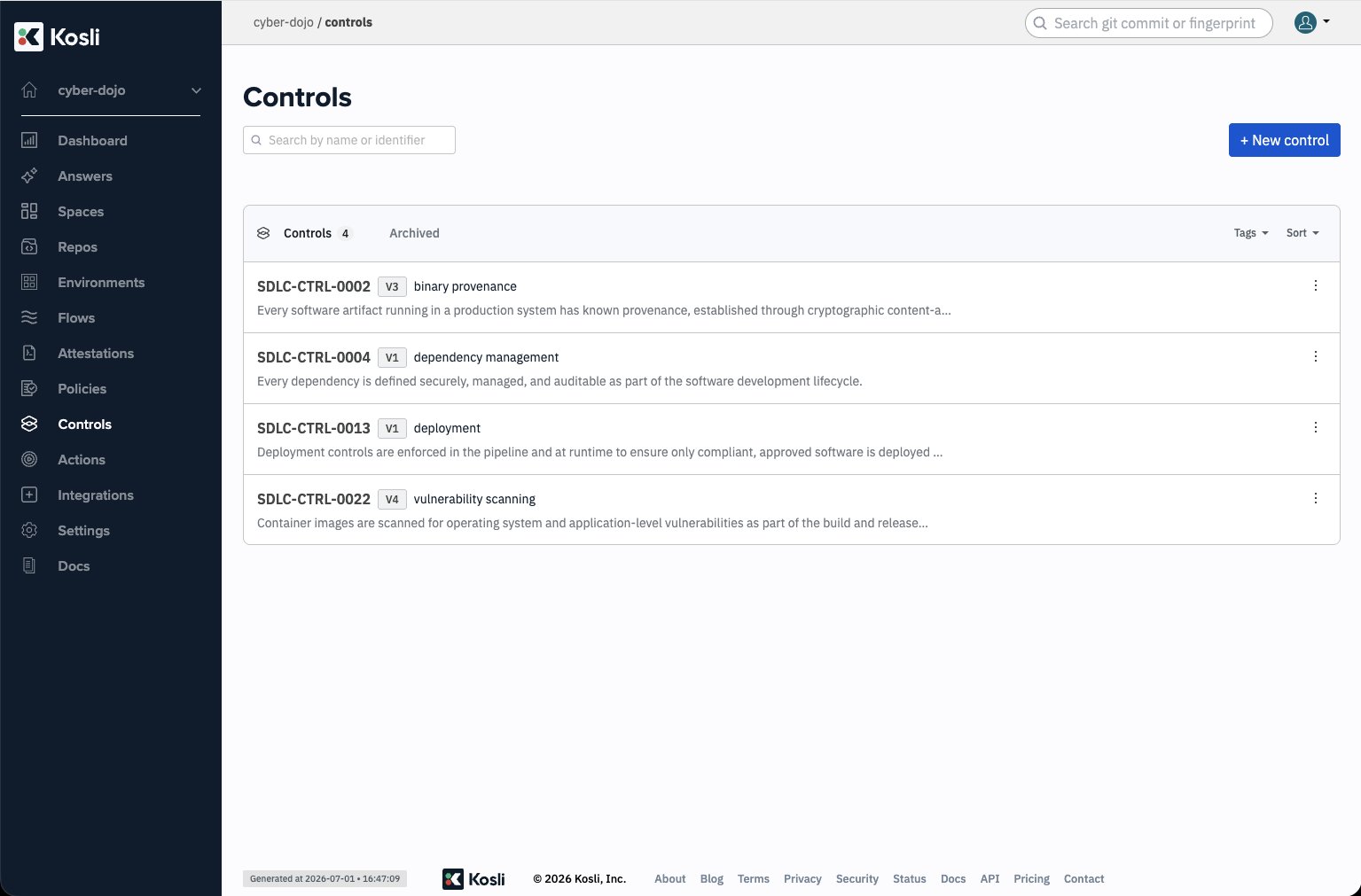
kosli list controls, fetch a single control with kosli get control CONTROL-IDENTIFIER, or use the controls API (GET /api/v2/controls/{org}).
Archiving a control
When a control is retired, archive it rather than deleting it. Archiving moves the control out of the main catalog into its Archived view but preserves its full history — past decisions and every version of the definition remain intact for audit — and an archived control can be unarchived later if it comes back into use. Archive or unarchive a control from its detail page (org admins only), from the CLI withkosli archive control CONTROL-IDENTIFIER and kosli unarchive control CONTROL-IDENTIFIER, or through the controls API (POST /api/v2/controls/{org}/{identifier}/archive and .../unarchive). Both actions appear as events in the control’s Versions tab, alongside Created and Edited events, so the full lifecycle is auditable.
Recording a decision against a control
A decision records the outcome of a PDP against a named control, scoped to a specific artifact. Use--fingerprint to identify the artifact the decision applies to — this is what allows kosli assert artifact --environment to later check that all required controls have passing decisions for that artifact specifically.
| Flag | Description |
|---|---|
--control | Required. The control identifier this decision is recorded against. |
--compliant | Required. Whether the control is satisfied. Boolean flag — pass --compliant=true or --compliant=false. |
--fingerprint | The SHA256 fingerprint of the artifact this decision applies to. Scope decisions to an artifact so that assertions and environment policies can check compliance for that artifact specifically. Omit to record a trail-scoped decision instead. |
--artifact-type | The artifact type (e.g. docker, file). Provide this with the artifact name/path as the command argument instead of --fingerprint to have Kosli calculate the fingerprint. |
--name | The attestation slot name on the trail. |
--description | Optional human-readable context for the decision. |
--attachments | Optional evidence file(s) to attach (e.g. an evaluation report, a REGO policy output). |
--user-data | Optional path to a JSON file containing additional structured data to attach to the attestation. |
--compliant=false decision makes the trail non-compliant. There are no restrictions on which flow or trail a decision can be recorded on — place it wherever makes sense in your process, typically at the point where the decision is actually being made (e.g. during a release preparation or promotion step). You can record multiple decisions for the same control on a trail; the most recent one is used when evaluating compliance.
A decision records the outcome of a PDP. How the PDP is implemented — running
kosli evaluate, executing a custom script, or using a third-party tool — is up to you. kosli attest decision records the outcome; it does not make the decision for you.Attaching evidence to a decision
Evidence attached to a decision explains why the decision was reached — not just that a control passed or failed, but what information was used to make that judgment. This is what auditors will ask for: the policy that was applied and the evaluation report that justified the outcome. A natural source of evidence is akosli evaluate report. kosli evaluate is a PDP: it runs a Rego policy against a trail’s evidence and writes the allow/deny result to its output. By default it also asserts — exiting non-zero when the policy denies — so pass --no-assert when you want to capture the result and record it as a decision yourself rather than failing the step. The example below evaluates a trail, captures the full JSON report, reads the result, and records it as a decision. See Evaluate trails with OPA policies for a full walkthrough of kosli evaluate.
--attachmentscontaining the Rego policy (for reproducibility) and the full JSON evaluation report--user-datacontaining the violations, which appear in the Kosli UI as structured metadata on the attestation--compliantset directly from the evaluation result
Requiring decisions in flow templates
A flow template defines which attestations a trail must have to be compliant. Because a decision is an attestation, you can make one a required part of a trail by adding an attestation oftype: decision. The name must match the --name you record the decision under.
release-template.yml
source-code-review-decision has been recorded on it. Use this when the decision is part of the trail’s own definition of done — for example, a release trail that must carry a recorded judgment before it is considered complete.
Flow templates require that a decision was recorded; they do not tie it to a specific control identifier. To require a decision for a named control, use for_control in an environment policy instead. The two mechanisms complement each other: the flow template gates trail compliance, the environment policy gates what may run in an environment.
Asserting artifact compliance
kosli assert artifact --environment is the Policy Enforcement Point (PEP). It checks that an artifact satisfies all requirements in the environment’s attached policy — including any controls required via for_control rules — and exits non-zero if it doesn’t. Use it as a pipeline gate before promoting an artifact to an environment.
| Flag | Description |
|---|---|
--fingerprint | The SHA256 fingerprint of the artifact to assert. |
--artifact-type | The artifact type (e.g. docker, file). Provide this with the artifact name/path as the command argument instead of --fingerprint to have Kosli calculate the fingerprint. |
--environment | Required. The Kosli environment whose attached policy the artifact is asserted against. |
End-to-end pipeline flow
The sequence below shows a single artifact moving through a build trail and a release trail, with the compliance decision made at release time and enforced by the release controller checking the environment policy.Referencing controls in environment policies
Environment policies define the requirements an artifact must satisfy before it can run in a given environment. You can require that specific named controls have a passing decision recorded — not just that the trail is generally compliant. This is the key distinction: rather than relying on trail compliance as a catch-all, you can make individual controls explicit policy gates.prod-policy.yaml
attestations rule with type: decision and a for_control identifier requires a compliant decision recorded for that control. The control must already exist in your organization — unlike recording a decision, a policy that references an unknown control identifier is rejected. With this policy in place, an artifact deployed to this environment will be marked non-compliant if a passing decision has not been recorded for each listed control on its trail. The artifact can still be deployed — Kosli records compliance state but does not block deployments by default. To gate deployments on compliance, use kosli assert in your pipeline. This abstracts the policy from the specific tooling your pipelines use: instead of “has an attestation of type snyk with zero criticals”, the policy expresses “control RCTL-1866 has been satisfied” — and the decision attestation carries the evidence of how that judgment was reached.
For the complete policy syntax, including attestation requirements and exceptions, see the Environment Policies page.
Viewing a control
Navigate to Controls in the Kosli app and select a control to see its detail view. The header shows the identifier, current version, name, any links, description, and tags. Below it are three tabs: Decisions, Coverage, and Versions.Decisions
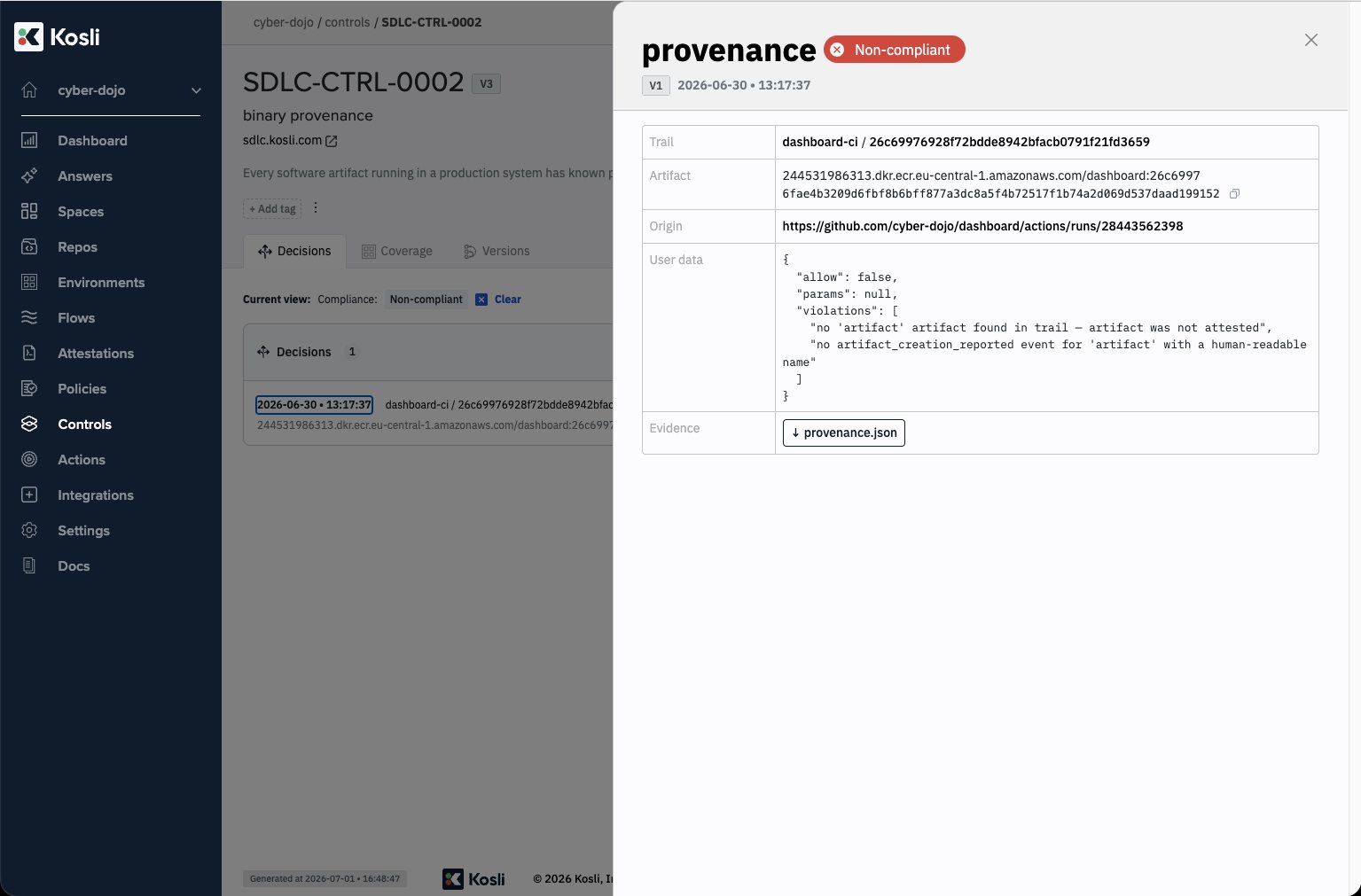
The Decisions tab is the default view. It lists every decision recorded against this control across all flows and trails, with the timestamp, the trail it was recorded on, the artifact fingerprint, and the outcome (compliant or non-compliant). Filter by outcome and flow, and sort by timestamp, to narrow the list.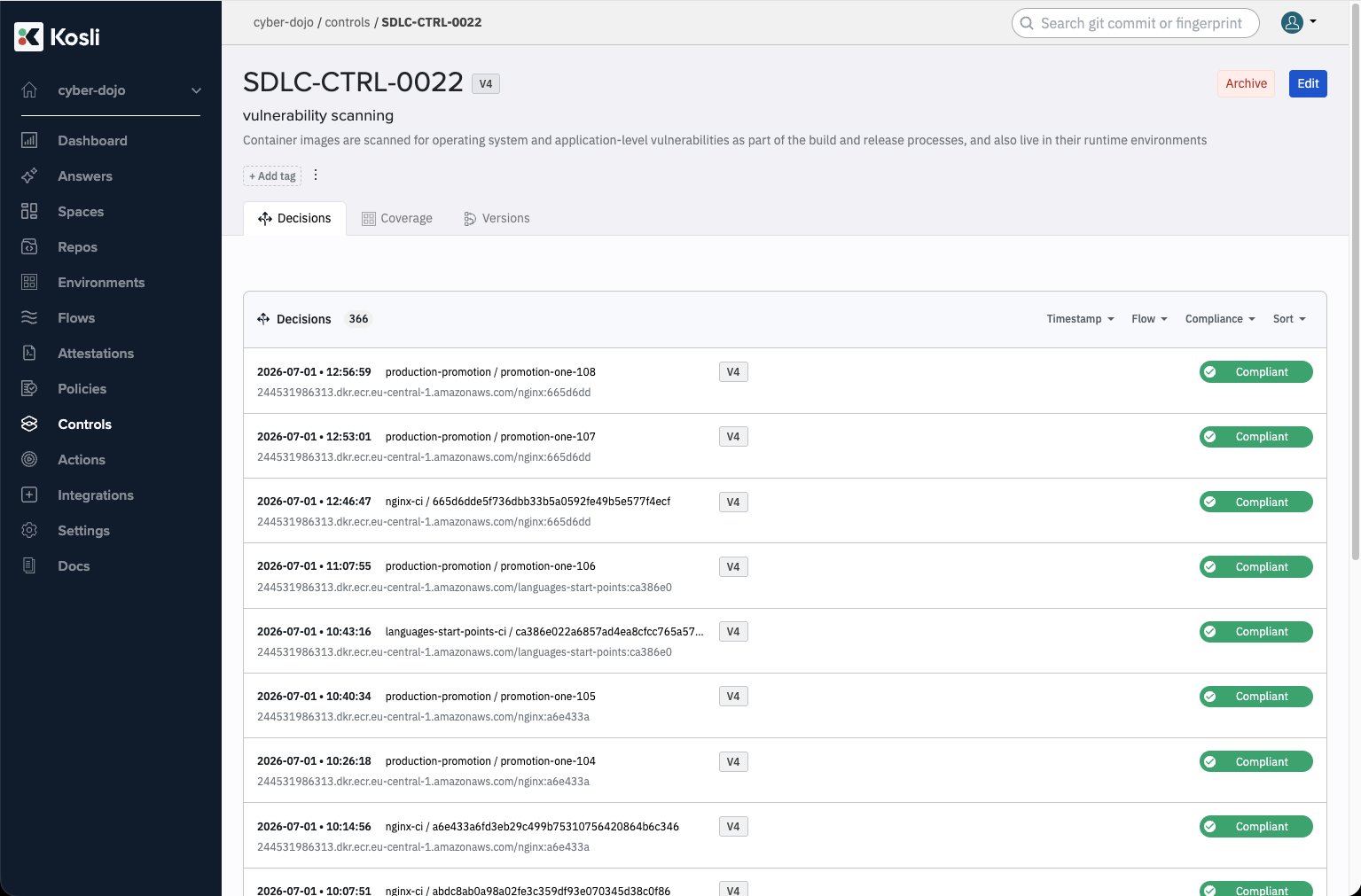
Coverage
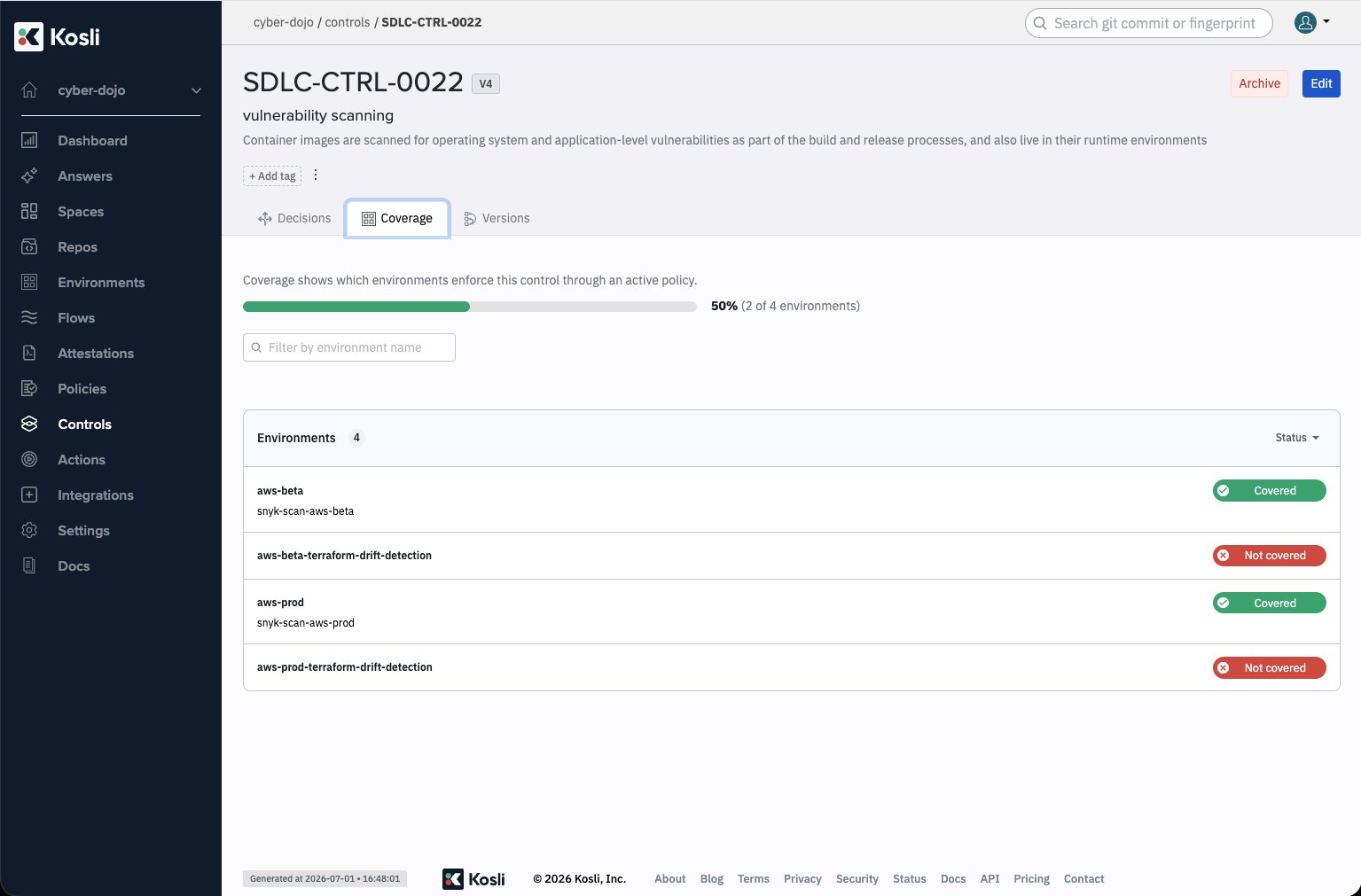
The Coverage tab shows how widely this control is enforced across your environments. A control is covered in an environment when that environment has an active policy whose latest version references this control through afor_control requirement — regardless of whether the policy is currently passing. Coverage measures enforcement reach, not compliance: an environment whose policy references the control but is currently failing still counts as covered, and the policy name is shown so you can investigate.
At the top, a progress bar summarizes coverage as a percentage and as N of M environments. Below it, each environment is listed with the policy that covers it and a Covered or Not covered badge. Filter the list by environment name, and use the Status filter to show all environments, only covered, or only not covered — handy for focusing on enforcement gaps.
Archived environments are excluded from the coverage list and from the totals — they are not counted in
N of M. Only active policies contribute to coverage: if a policy is archived or detached from an environment, that environment is no longer covered by it.GET /api/v2/controls/{org}/{identifier}/coverage returns the summary (total, covered, coverage_percent) and a paginated list of environments, with name search and filtering by coverage state (?covered=true / ?covered=false).
Versions
The Versions tab lists every version of the control definition — the name, description, and links as they were at each version, with who made the change and when. Because every decision references the control version that was current when it was recorded, this history lets auditors see exactly what the control required at the time of each decision.What you’ve accomplished
You have learned how to define controls in Kosli, record decisions against them from pipelines usingkosli attest decision as the PDP, require controls in environment policies with for_control, assert artifact compliance using kosli assert artifact --environment as the PEP, and review the decisions, coverage, and version history of each control.
Your controls catalog is now the bridge between the evidence Kosli collects and the requirements your auditors, control owners, and regulators care about. For each production change, you can now answer: “which of our controls have a compliant decision recorded, and which don’t?”
From here you can:
- Learn more about controls
- Learn more about environment policies
- Learn more about attestations
- Evaluate trails with Rego policies to automate decision-making